How to Print Unicorn Coloring Pages Clean & Perfect
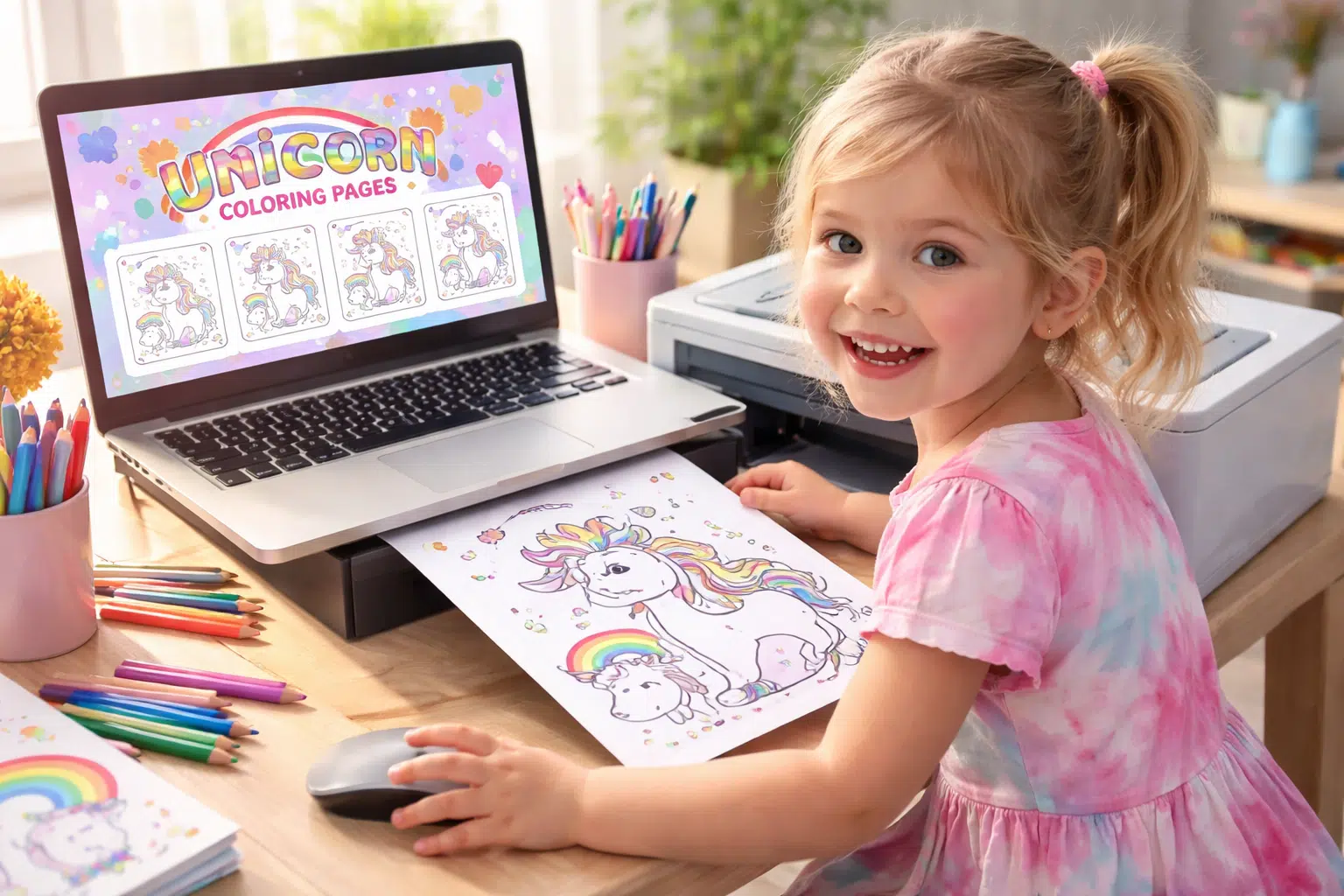
You have just discovered that a website has beautiful unicorn coloring pages, and you are about to print it out, but instead of a beautiful page without adverts, cut-off pictures, or a haphazard layout.
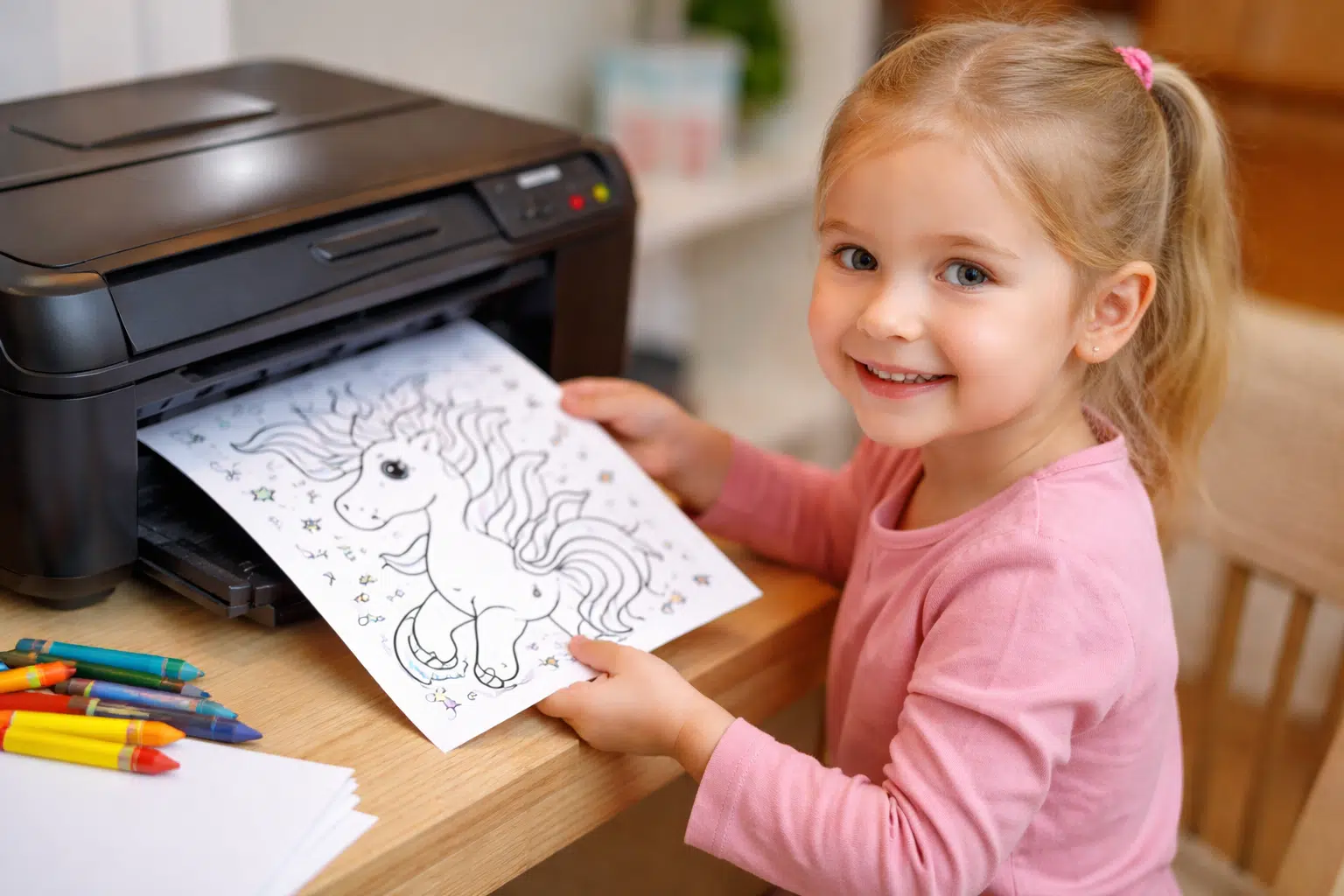
This happens to be one of the most frequent issues users have. The upside of it is that you do not have to download anything. You can print directly from the website, and if you use the right method, the result will be clean, centered, and perfect for coloring.
In this guide, I’ll show you exactly how to print unicorn coloring pages directly from a website using Android, iPhone, and a laptop, along with the best settings that actually work.
What You Need Before Printing
Check setup. Before beginning, make sure you have it well configured:
- An operational printer (WiFi or connected to your device)
- Your phone or laptop
- A unicorn coloring page opened in your browser
- A4 or Letter size paper
- Stable internet connection
Print Unicorn Coloring Pages from a Website (Laptop)
This technique permits you to control it the most and creates the best-quality prints that are not dirty.
1: Open the Coloring Page on the Website
On the site where you got your unicorn coloring page, open it in your browser.

2: Scroll and Align the Image Properly
Scroll the page until the coloring image is clearly visible and centered on your screen. This helps avoid printing unwanted content.

3: Open the Print Option (Ctrl + P)
Simply press:
- Ctrl + P (Windows)
- Command + P (Mac)

4: Select Your Printer
In the print dialog box, choose the printer you want to use.
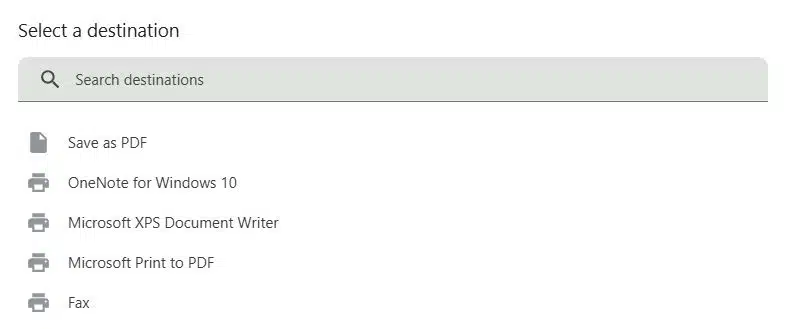
5: Adjust the Correct Print Settings
Set the following options for the best results:
- Paper size → A4 or Letter
- Layout → Portrait
- Scale → Fit to Page
| Setting | Best Option to Select | Why It Matters |
|---|---|---|
| Paper Size | A4 (or Letter) | Prevents layout mismatch |
| Layout | Portrait | Fits most coloring pages properly |
| Scale | Fit to Page | Avoids cut-off edges |
| Margins | Default or None | Gives a clean full-page look |
| Color Mode | Black & White | Sharp outlines + saves ink |
| Print Quality | High Quality | Ensures clear lines |
| Background Graphics | OFF | Gives a clean, full-page look |
6: Disable Background Graphics
Turn off background graphics to remove unnecessary colors, ads, and website elements.
7: Click Print
When everything appears right in the preview, you can print to receive your coloring page.
Print Unicorn Coloring Pages from Android
Printing on an Android phone is easy because you have to be in a position to locate the print option.
1: Open the Coloring Page in Your Browser
Open the page with unicorn coloring, Chrome, or any browser.

2: Tap the 3-Dot Menu
Click on the three dots (⋮) at the top of your browser.
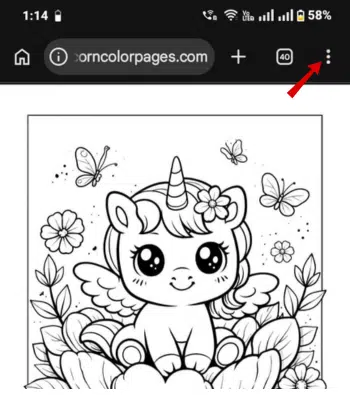
3: Tap Share and Then Print
Tap Share in the menu, and choose Print.
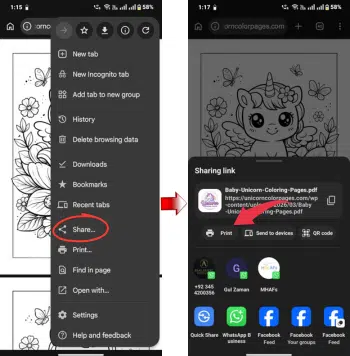
4: Select Your Printer
Choose your connected WiFi printer from the list.
5: Adjust the Print Settings
Set these options:
- Paper size → A4
- Color mode → Black & White
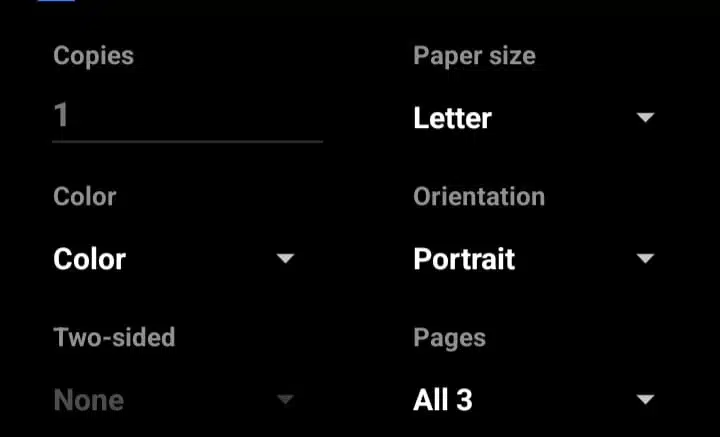
6: Tap Print
After everything is ready, hit Tap Print to print.
Print Unicorn Coloring Pages from iPhone (Safari)
iPhone is based on AirPrint, which makes printing easy and fast.
1: Open the Coloring Page in Your Browser
Open Safari or Chrome and load the unicorn coloring page.

2: Tap the Share Icon
Press the Share button at the bottom of your screen.
3: Scroll Down and Tap Print
Scroll through the options and tap Print.

4: Select Your Printer
Choose your AirPrint-enabled printer from the list.
5: Adjust Print Settings
Set the number of copies and confirm the correct paper size.
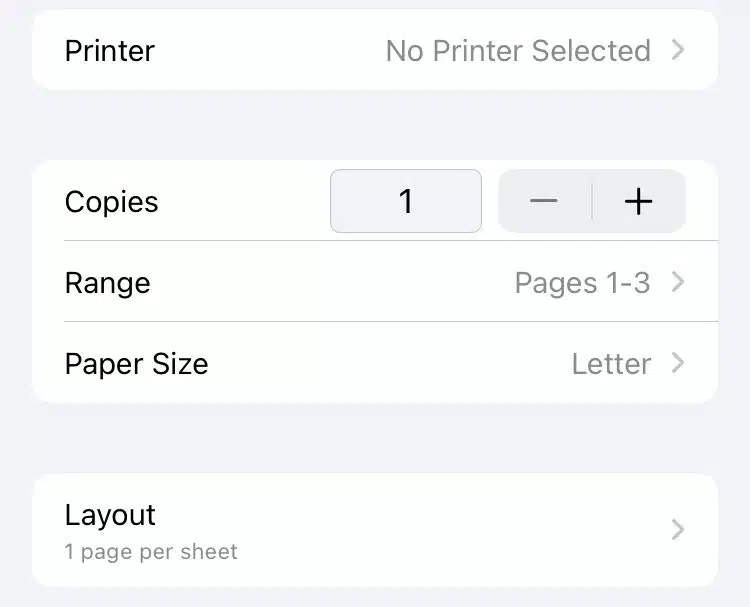
6: Tap Print
Tap Print to start printing your coloring page.
Print Unicorn Coloring Pages from Android Phone Gallery
Android printing is not as difficult as most individuals might believe it to be.
Step-by-Step Guide:
- Get your unicorn coloring page (PDF or picture)
- Open it in your Gallery or PDF viewer
- Tap the 3-dot menu (⋮) or Share icon
- Select Print
- Choose your printer (make sure WiFi is ON)
- Adjust settings:
- Paper size → A4
- Color → Black & White
- Copies → 1
- Tap Print

How to Print Unicorn Coloring Pages from iPhone (AirPrint Guide)
Apple makes printing very smooth using AirPrint.
Step-by-Step Guide:
- Open the coloring page in Photos or Files
- Tap the Share icon
- Scroll down and tap Print
- Select your AirPrint-enabled printer
- Adjust settings (paper size, copies)
- Tap Print

How to Print Unicorn Coloring Pages from a Laptop (Windows & Mac)
This method gives you the most control and best results.
Windows (Ctrl + P Method)
- Open your coloring page (PDF recommended)
- Press Ctrl + P
- Select your printer
- Adjust settings:
- Paper size → A4
- Scale → Fit to Page
- Layout → Portrait
- Click Print

Mac (Command + P Method)
- Open the file
- Press Command + P
- Choose printer
- Adjust layout and scale
- Click Print
Best Tips for Clean Coloring Page Prints
If you want your prints to look professional, follow these tips:
- Always scroll so the coloring page is centered before printing
- Avoid printing pages with heavy ads or clutter
- Use black & white mode for better outlines
- Print on slightly thicker paper for better coloring results
Frequently Asked Questions
Do I have access to coloring pages that I can directly print on a site?
Yes, you can print straight out of your browser’s print menu, and no downloads are required.
Why are there ads and additional content in my print?
Because you are printing the full webpage. Use print settings or simplify the page to fix this.
Which environment is the most appropriate for printing coloring pages?
The best results are with A4, Portrait, Fit to Page, and High Quality.
Is it possible to print using my phone’s web browser?
Yes, both Android and iPhone support direct printing through browser options.
Final Thoughts
Coloring pages unicorn, once you just have to know the correct type of file type, is so simple, quick, and convenient to print on a Web page.
No need to download, no need to use complex tools. It is as simple as opening the page, changing a few settings, and printing.
Focus on:
- Correct print settings
- Clean page layout
- Proper alignment